Answers
How do I edit CSS using Stylizer?
When you open a web page in Stylizer, each CSS file that the page
references is opened in the grid on the right hand side of the screen.
You can open up any of the CSS properties in this grid and edit
their declarations or values by double-clicking on them or by
using the following hot keys:
- Windows: F2
- Mac Desktop: Cmd+F2
- Mac Laptop: Cmd+Fn+F2
Back to top ↑
Can I modify the way that Stylizer formats my CSS Files?
Yes. In the save dialog, you can choose the formatting of any
CSS file that you edit in Stylizer. The application ships with both
a default and a minified formatting profile.
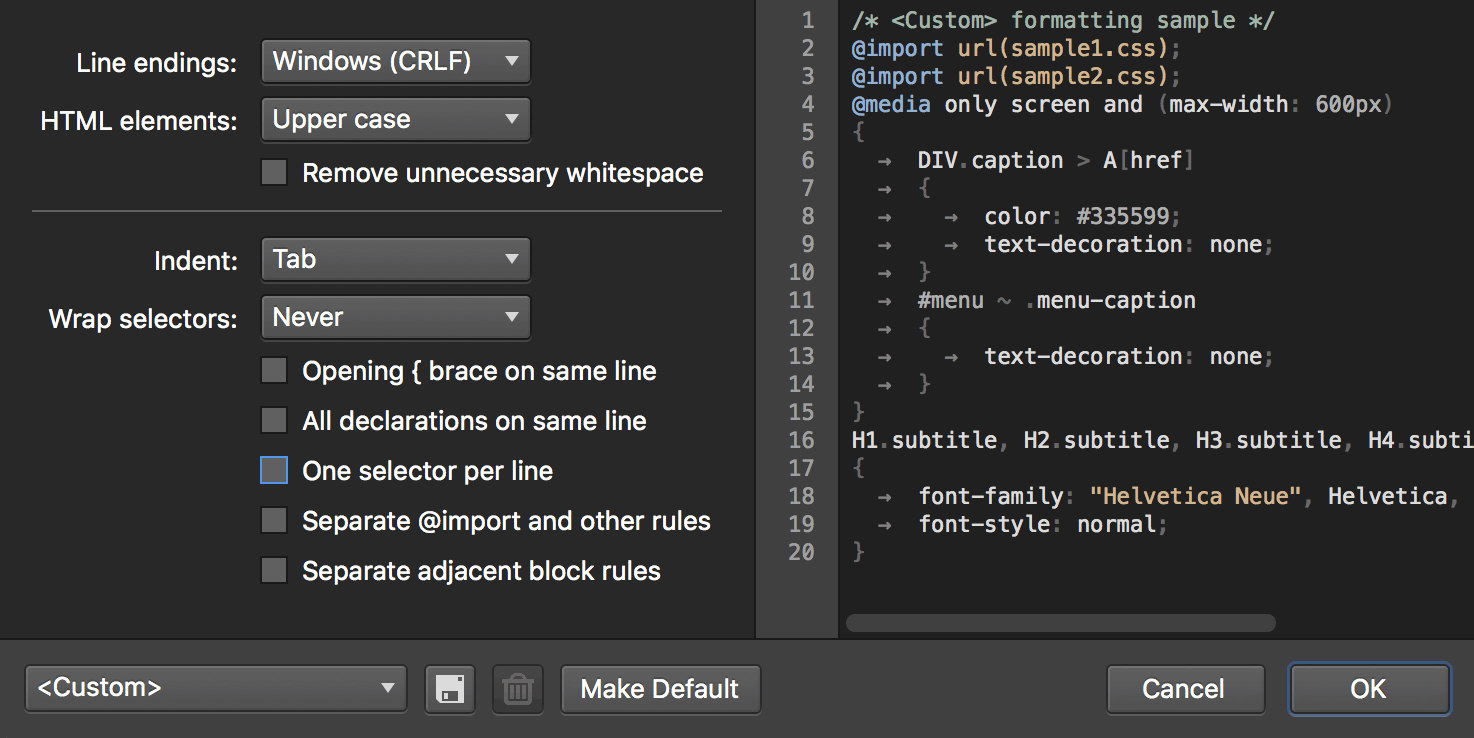
If you'd like to specify your own formatting profile, select the
'CSS Formatting...' option from the Save dropdown menu. In the
CSS Formatting window, you can modify every aspect of
how your CSS files are written and save your custom profiles
for future use.
Back to top ↑
Does Stylizer replace Firebug?
Stylizer's famous "point, click, edit" workflow eliminates the
need to use Firebug's CSS inspection features as a standard
part of your workflow.
With that said, Firebug remains a great tool for performing
page diagnostics, network monitoring, and JavaScript
debugging.
Back to top ↑
What is the Remote Control and why should I bother with it?
The Remote Control is not just a toolbar that
sits atop each CSS rule in Stylizer. It provides a variety of special
functions, and learning about its capabilities can greatly accelerate
your productivity, especially as an experienced user.
Every button on the remote control that has an arrow in its icon is
actually a size grip button. That means you can quickly click and
drag the button to adjust the CSS property that the button corresponds
to.
Back to top ↑
What save options are available in Stylizer?
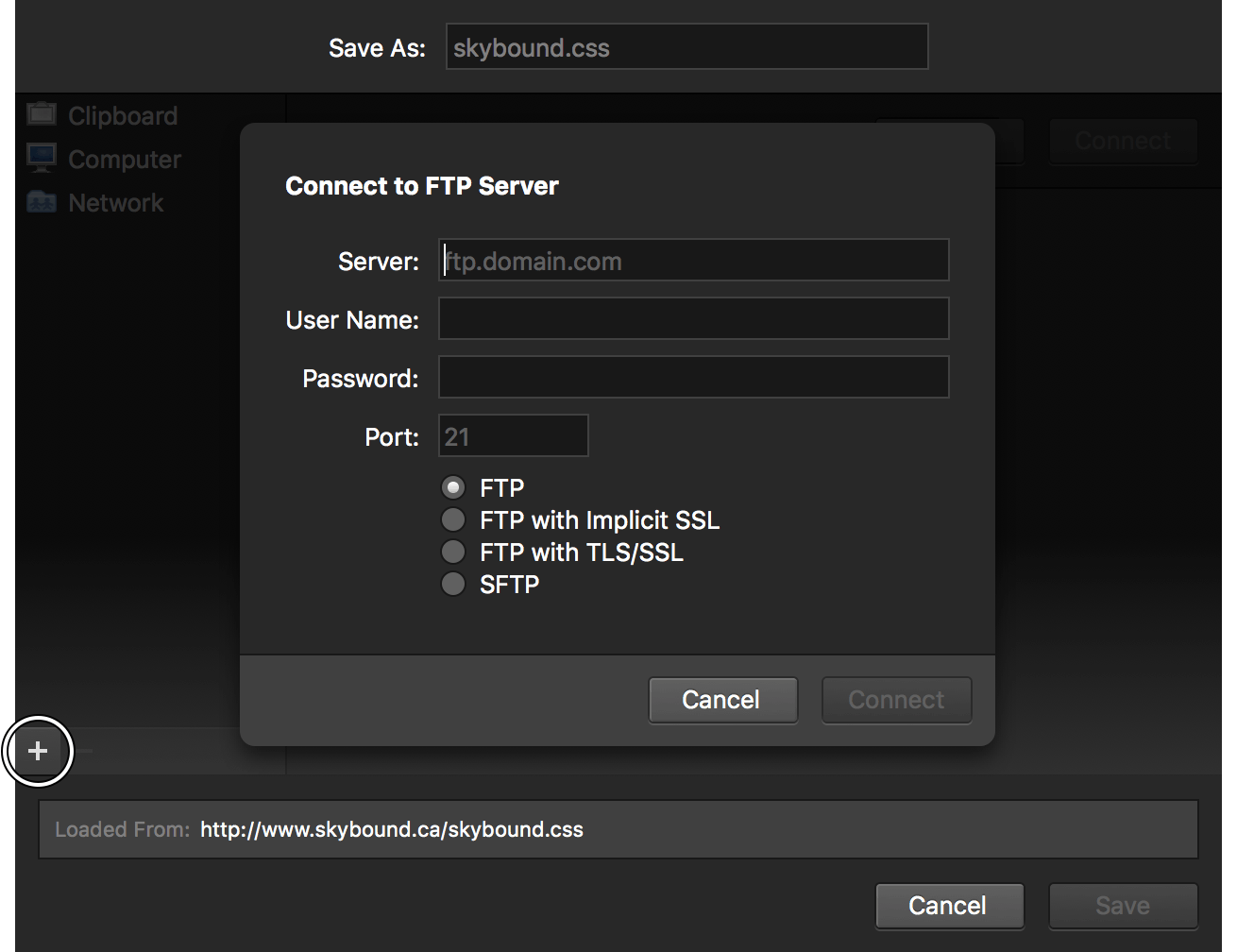
Stylizer can save your CSS files to an FTP, SFTP, or FTP/SSL
server; a location on your file system, or a location on a network
share.
Many content management systems only allow custom CSS code to be
entered into a text field in the administration menu of the web site.
For users of these systems, there is a "save to clipboard" option.
When this option is used, pressing the Ctrl/Cmd+S hotkey
or the Save button will result in the raw style sheet text to
be copied to your system clipboard.
Back to top ↑
Will Stylizer work with my CMS?
Stylizer works with any content management system that
allows CSS customization, whether the system is installed
on your server, or remotely hosted on a server elsewhere.
Simply visit the page that you'd like to edit from within
Stylizer, make your changes, and save them to your system
clipboard. You should then be able to paste the results into
some part of the administrative back end of your site.
For more information, see our section on the save options
that are available from within Stylizer.
Back to top ↑
What is multi-click? Where does Stylizer use this?
Multi-click is an uncommon but useful action. It helps
extract more functionality out of a standard two-button
mouse.
Stylizer uses multi-click as an accelerator for inserting rules and properties.
Try using it anywhere on the code grid to insert a new line.
Please note that multi-click unfortunately does not work with the Apple MightyMouse.
Back to top ↑
Will my existing Stylizer license key work on my Mac?
The short answer is yes, as long as you are within your two machine limit.
Back to top ↑
What are the immediate benefits of activation?
There are a number of good reasons activate Stylizer.
On Windows, the full version of the software will allow you to
test your work in 8 different embedded browsers.
On all platforms, activating the software will stop you from
seeing the 'Time for a Timeout'.
Finally, the trial version of the software will expire after two
weeks' time, and you will lose the ability to edit.
Back to top ↑
How do I find out which version I'm using?
Click on the diamond icon in the top left corner of the Stylizer application
window, and choose 'Preferences.' Alternately on Windows, you may press F1.
Your Stylizer version number is displayed in the Status section
of the Preferences window.
Please include your version number whenever you contact us
for support.
Back to top ↑
How do I enter my product key?
Stylizer automatically recognizes when a valid product key is on
the clipboard.
Open Stylizer, then open the email you received when you first
purchased Stylizer. In the email there is a product key. Copy this
product key to the clipboard (select it and press
Ctrl+C/Cmd+C), and Stylizer should automatically
recognize the product key and register itself.
Alternately, you can open the Preferences window from the
diamond menu in the top-left corner of the application. Click
the link titled 'Activate Now' and paste your product key into
the text field.
Back to top ↑
Why does Stylizer tell me my product key is invalid?
This problem typically occurs when you trying to enter a
product key for an old version of Stylizer into a newer
version of the software.
If you have already purchased a product key for the version
of Stylizer that you are attempting to activate, please log in
to your
Skybound Account and ensure that you are
using the correct product key.
If you need to obtain a new product key,
visit our online
store, or log into your
Skybound
Account to upgrade a product key for an
old version of the software.
Back to top ↑
Why does Stylizer say that it is temporarily activated?
If you purchased your license within the last 30 days, your activations will be
is temporary. They will automatically become permanent after 30 days.
Back to top ↑
How do I make Stylizer use a light-colored theme?
To change to the light theme (which is easier for some people
to see), press Ctrl/Cmd + F10.
Back to top ↑
How do I get Stylizer to work from behind a proxy server?
The embedded Internet Explorer browser uses the same
settings as your standalone Internet Explorer browser, so
it shouldn't require any additional configuration.
The embedded Firefox browser can be configured using
Firefox's about:config page. Here's how:
-
Make sure that the currently selected web browser is
Firefox.
- Navigate to about:config.
-
Click the "I'll be careful, I promise" button (if you
promise to be careful).
- Type proxy into the text box at the top.
-
Double click on network.proxy.type and
enter the number 1.
-
Double click on network.proxy.http and
enter the name or IP address of your proxy server.
-
Double click on network.proxy.http_port
and enter the port number of your proxy server.
Since Stylizer downloads style sheets independently from
the browser, if your proxy server requires a password,
you will be asked to enter the password a second time to
download them.
Back to top ↑
What causes Cleanser to appear?
The Stylizer grid is an error-free CSS development
environment. It won't allow you to make an error, and it
won't allow you to work with CSS that contains errors.
However, in the practical world of web site design, there
are times when you must work with error-ridden CSS.
The Cleanser feature provides a quick way to track down
and rectify these errors, so that these buggy sheets can be
loaded into Stylizer for editing.
Most commonly, the dialog appears when a style sheet is
loaded that contains errors that Stylizer cannot automatically
fix on its own. It may also appear if error-ridden CSS is
pasted into the grid from an external source like a web site
or text editor.
Unfortunately, the CSS validator that is included in Stylizer
was written before the CSS3 reccomendation process began.
As such, it will not accept some of the newer syntaxes that
are used in CSS3 declarations. While we have been slowly
starting to include some of these newer rules, the process
is slow, because the CSS3 reccomendation is still changing
quite radically. Until it has become an actual specification,
it is unlikely that Stylizer will support all of its syntax.
You can override Stylizer's validator at any time by
highlighting a rule or declaration that does not validate, and
pressing Ctrl+Enter. With that said, this is not
recommended, as it allows you to pass invalid CSS to the
underlying browsers, which can in some cases cause the
application to crash or hang.
Back to top ↑
How do I revert my CSS changes?
To discard any changes that you've made to your CSS, you
can revert to the style sheet that's stored on the server. To
do this, select the Reload option from the Save
drop down menu, or hit Alt+F5.
Back to top ↑
How do I add new CSS rules to my style sheet?
To insert a new CSS rule into your sheet, click on the
Add Rule button at the bottom of the grid.
Alternatively, click anywhere in the grid and hit either
the Enter or Insert keys on
your keyboard.
Back to top ↑
How do I make an element semi-transparent?
Using transparency on the web without Stylizer is a complex
process, but Stylizer makes it relatively straight forward. Simply
add a shortcut property to the desired rule called
+opacity, followed by a percentage value.
In the underlying CSS file, Stylizer generates the CSS code
required to make the opacity work in a similar fashion across
all browsers.
Stylizer includes a number of these shortcut properties,
including ones for border-radius, text-shadow, and box-shadow.
All are prefaced with + so that they're easy to find.
Back to top ↑